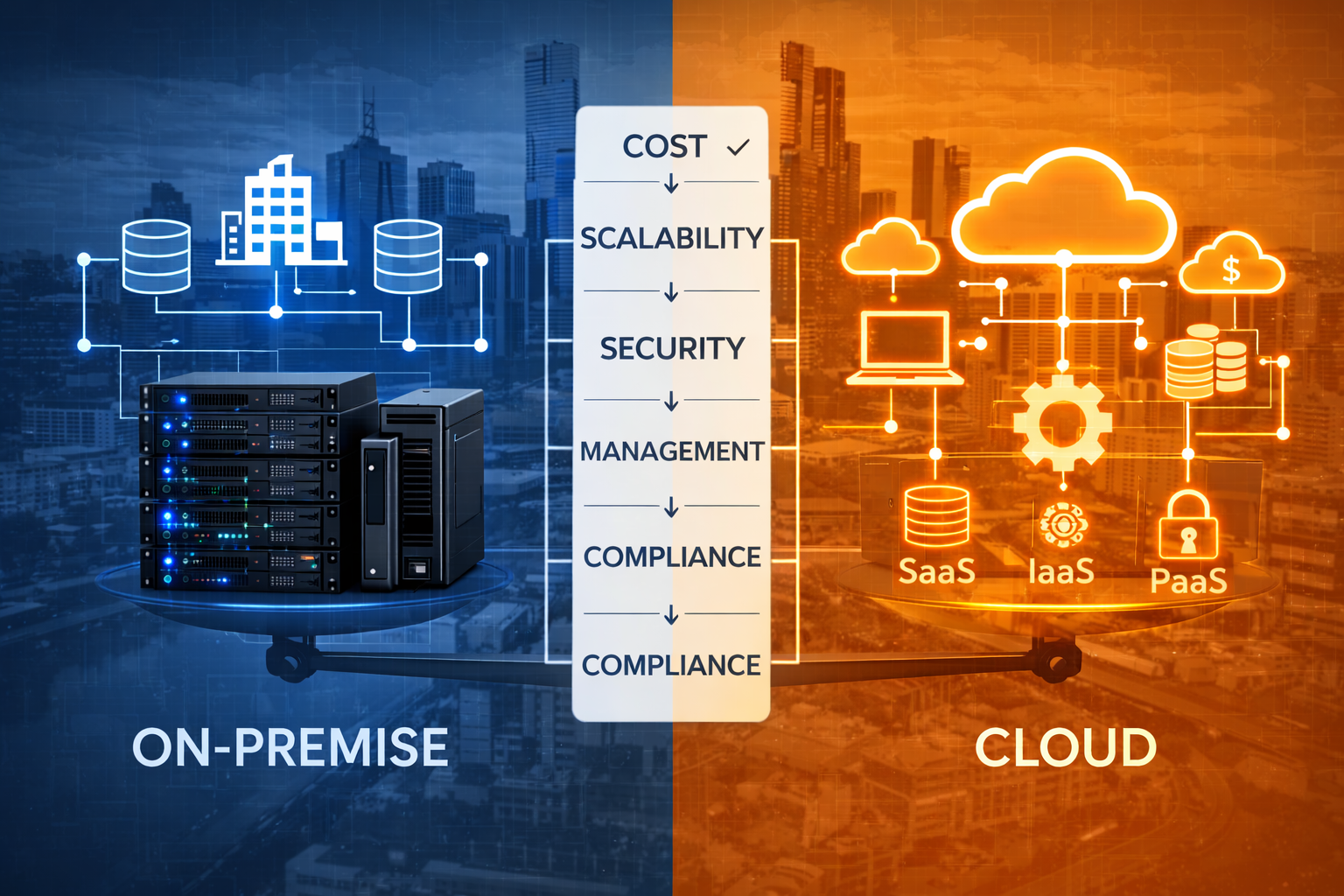
2019! Melbourne accounting firm, 45 staff. They migrated their practice management system to AWS.
Budget: $28,000. Actual cost: $71,000.
Timeline: 8 weeks. Actual timeline: 22 weeks.
Post-migration monthly costs: Estimated $2,400. Actual: $6,800.
Why? Every classic mistake, all in one project. No proper discovery. Underestimated data migration complexity. Didn’t plan for network connectivity. Ignored user training. Launched everything at once instead of phased approach.
When I worked with them in 2023, four years after the migration, they were still dealing with technical debt from that failed project.
I’ve been part of 120+ cloud migrations since 2014. The successful ones follow similar patterns. So do the failures.
This isn’t a theoretical guide. These are mistakes I’ve seen Australian businesses make repeatedly, the warning signs to watch for, and what to do instead.
Mistake #1: Migrating Without Understanding What You Actually Have
What it looks like:
Brisbane logistics company decided to “move everything to Azure.” They had rough inventory: 6 servers, some databases, bunch of applications.
Started migration. Discovered halfway through:
- Three undocumented databases feeding critical reports
- Legacy VB6 application still in use (no one mentioned it)
- Custom integration between WMS and accounting (not on any documentation)
- Shared drives with 2.4TB of files (estimated 400GB)
Project stopped at week 12. Took 8 weeks just to document everything. Budget blown.
Why it happens:
IT teams know what’s documented. They don’t know what’s actually running.
Applications accumulate over years. Someone builds a quick Access database. Marketing runs a FileMaker system. Operations has a spreadsheet macro that’s somehow business-critical.
These systems aren’t in the IT asset register. They just… exist. Until migration breaks them.
What I learned from a healthcare migration:
Spent first three weeks just discovering what was actually there:
- Interviewed 15 people across all departments
- Monitored network traffic to find undocumented systems
- Reviewed user folders on file servers
- Checked scheduled tasks and cron jobs
- Found database connections to identify hidden systems
Found:
- 8 systems IT didn’t know about
- 3 custom integrations built by ex-employee
- Patient portal using database IT thought was decommissioned
- Reporting scripts pulling data from “archived” SQL Server
That discovery saved the project. Without it, we would’ve broken systems and not known until users complained.
How to avoid this mistake:
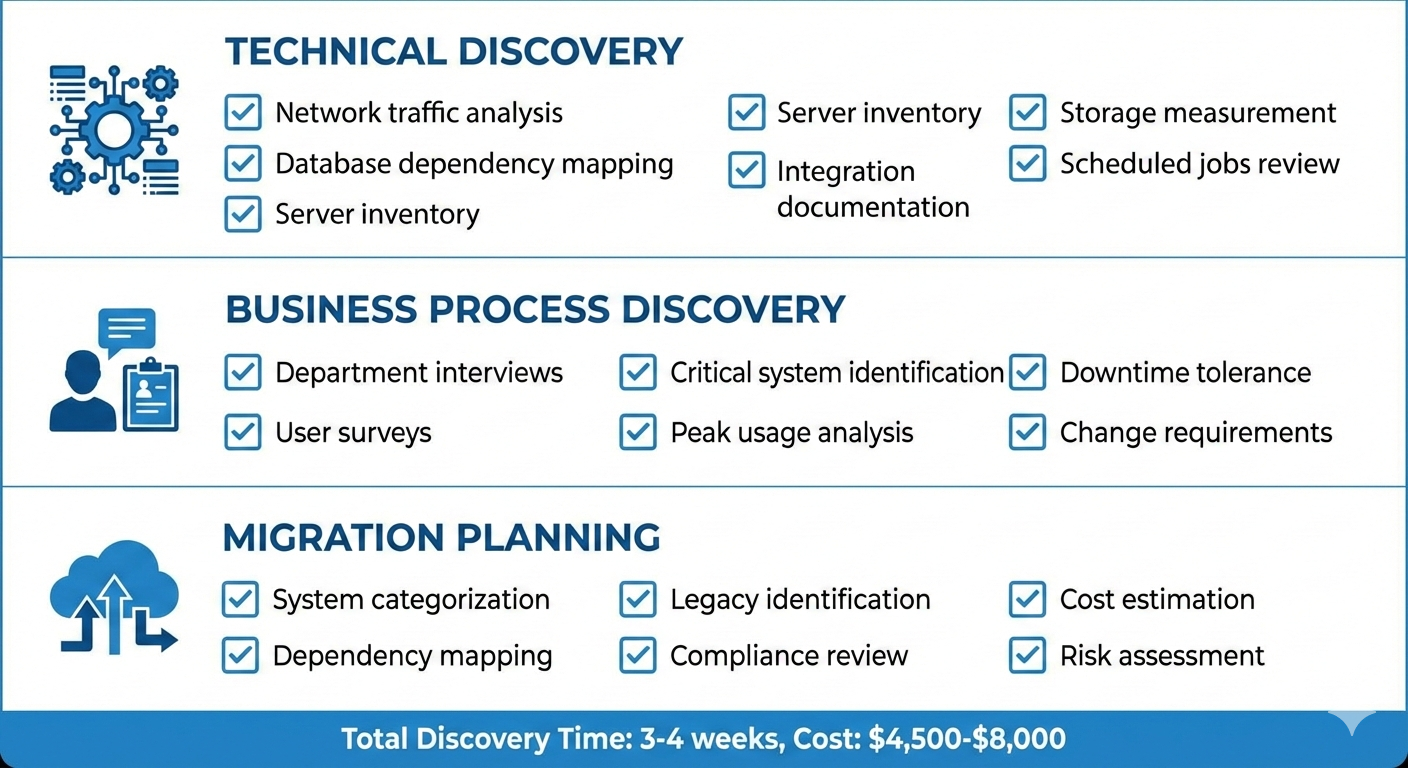
Step 1: Technical Discovery (1-2 weeks)
- Network traffic analysis (find all connections)
- Database dependency mapping (what talks to what)
- Server inventory (everything running, not just what’s documented)
- Application dependencies (list every service, every integration)
- Storage analysis (actual sizes, not estimated)
Step 2: Business Process Discovery (1 week)
- Interview department heads (what systems do they use daily)
- Survey end users (what breaks if X stops working)
- Review business processes (what’s actually business-critical)
- Document peak usage times (when can’t you afford downtime)
Step 3: Create Migration Inventory
- Everything gets categorized: Business Critical / Important / Nice to Have
- Document all dependencies
- Identify what can’t move (legacy systems, compliance restrictions)
- Calculate actual data volumes
- Map out integration points
Melbourne healthcare provider did this right:
- 3 weeks discovery before touching anything
- Found 12 systems IT didn’t know about
- Identified 4 that couldn’t migrate (regulatory compliance)
- Built accurate timeline and budget
- Migration executed 2 weeks ahead of schedule, 8% under budget
Discovery cost: $4,500-$8,000 depending on environment complexity
Cost of skipping discovery: 30-80% budget overrun, 2-3x timeline extension (based on projects I’ve rescued)
Mistake #2: Underestimating Data Migration Complexity and Time
What it looks like:
Sydney professional services firm. 850GB of file server data. “We’ll just copy it over the weekend.”
Weekend comes. Copy starts Friday 6pm. By Monday morning: 240GB transferred. Files corrupting during transfer. Production delayed.
Had to roll back. Start over with proper migration approach. Took 3 weekends plus 4 evenings.
The problem most miss:
Data migration isn’t just copying files. It’s:
- Maintaining file permissions and ownership
- Preserving timestamps and metadata
- Handling locked files and open connections
- Dealing with long file paths (Windows has 260 character limit)
- Managing network bandwidth (don’t saturate your internet during business hours)
- Validating data integrity after transfer
- Cleaning up data (duplicate files, old versions)
Real numbers from recent migrations:
Melbourne law firm - 1.2TB data:
- Estimated: “Copy over weekend”
- Actual: 3 weekends + validation
- Issues: Long file paths, permissions, special characters in filenames
- Pre-migration cleanup saved 380GB (32% of data was duplicates or old versions)
Brisbane manufacturer - 4.5TB CAD files:
- Initial estimate: 2 weeks transfer time
- Actual: 6 weeks
- Issues: Large individual files (500MB-2GB), limited upload bandwidth, file corruption on first attempt
- Solution: Incremental sync + AWS Snowball for bulk transfer
Healthcare provider - 600GB + 8 databases:
- Estimated: 1 weekend
- Actual: 3 weekends for files, 2 weekends for databases (staged migration)
- Issues: Database dependencies, maintaining referential integrity, zero-downtime requirement
Why estimates fail:
-
Bandwidth limitations
- Office: 100Mbps upload (theoretical)
- Actual during business hours: 15-25Mbps (other traffic)
- Overnight: 60-70Mbps
- Math: 1TB at 60Mbps = 37 hours transfer time (just upload, no processing)
-
File system limitations
- Windows 260 character path limit
- Special characters in filenames
- Case-sensitive vs case-insensitive file systems
- NTFS permissions don’t map directly to cloud storage ACLs
-
Application data complexity
- Databases can’t just be copied (backups need restore, validation)
- Active Directory integrations need reconfiguration
- Encrypted files need keys migrated
- Applications with embedded file paths break
How to avoid this mistake:
Phase 1: Data Assessment (Before Estimating)
- Actual data volumes (not “approximately”)
- File type breakdown (millions of small files vs. few large files)
- Permission complexity (simple vs. complex ACLs)
- Data cleanup potential (duplicates, old versions)
- Network bandwidth available (measured, not theoretical)
Phase 2: Test Migration
- Migrate 50-100GB representative sample
- Measure actual transfer rates
- Identify issues (long paths, permissions, corrupted files)
- Calculate realistic timeline based on test results
Phase 3: Data Cleanup (Before Migration)
- Remove duplicates (file hash comparison)
- Archive old data (7+ years, not accessed recently)
- Compress where appropriate
- Fix permission issues before migrating
Phase 4: Staged Migration
- Start with non-critical data
- Migrate in chunks, validate each chunk
- Don’t migrate everything at once
- Keep source data until validation complete
Melbourne accounting firm example:
Pre-migration state:
- 1.4TB on file server
- Estimated migration: “1-2 weekends”
After assessment:
- Removed 520GB duplicates and old data
- Net migration: 880GB
- Actual time: 4 evening sessions (off-hours)
- Zero corruption, all permissions intact
Investment: $2,800 for proper data migration planning Saved: 3-4 weeks vs. failed copy-and-retry approach
Mistake #3: Ignoring Network Connectivity and Latency
What it looks like:
Brisbane company migrated ERP to AWS Sydney region. Application worked fine in testing.
Launch day: Users in Brisbane office complaining application is slow. Melbourne remote workers saying it’s unusable.
The problem? They tested from AWS itself (fast). Didn’t test over actual user connections.
What went wrong:
Their on-premise setup:
- Application and database on local network
- Page loads: 0.3-0.8 seconds
- No noticeable latency
After cloud migration:
- Application in AWS Sydney
- Database in AWS Sydney
- Brisbane office users: 18-25ms latency to Sydney
- Melbourne remote users: 35-50ms latency
- Page loads: 2.5-4 seconds
- Users frustrated
Why latency matters more than you think:
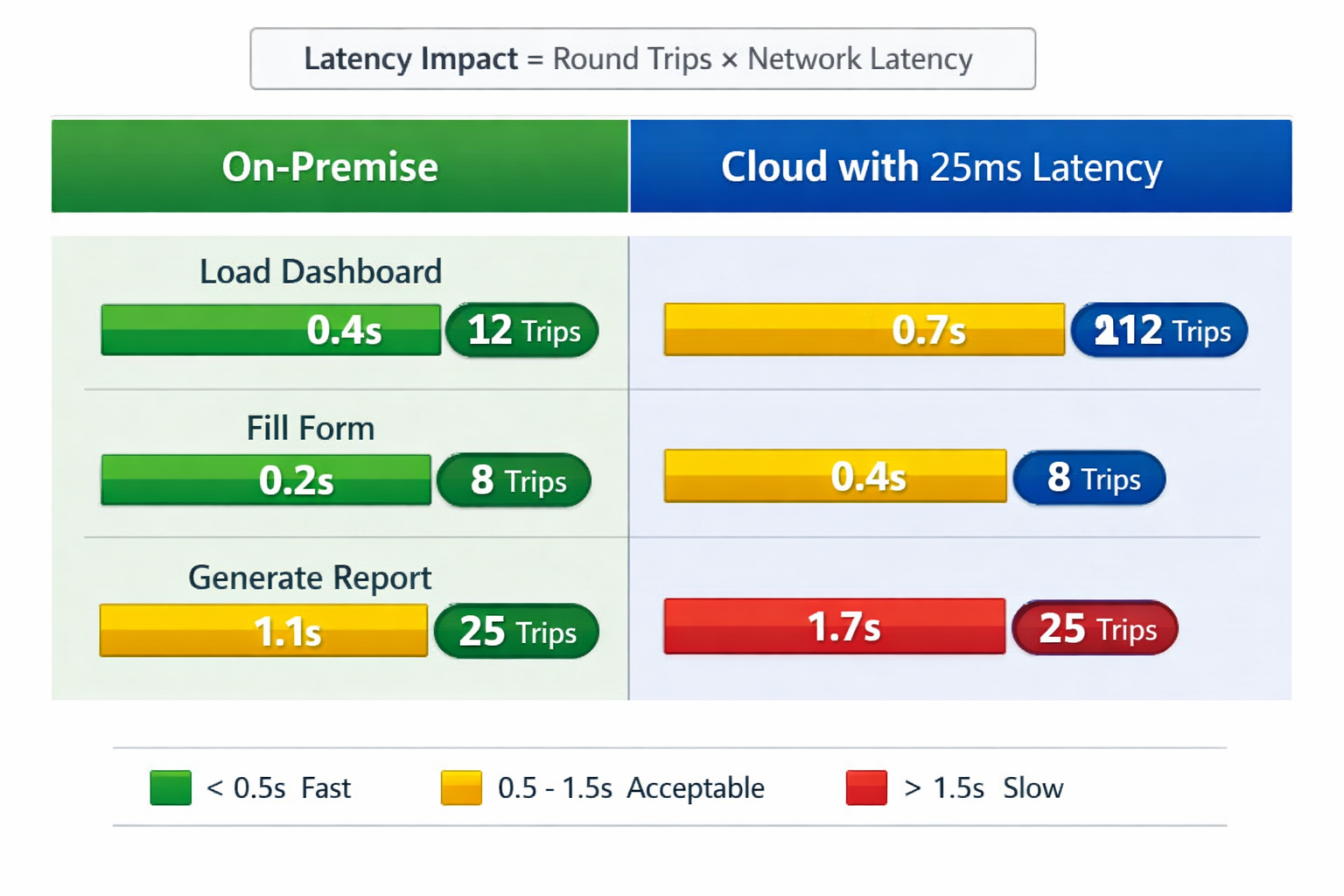
Traditional client-server applications make LOTS of round trips:
- Load page → query database (1 round trip)
- Click dropdown → query for options (1 round trip)
- Fill form → validate each field (5-10 round trips)
- Submit → process and redirect (2-3 round trips)
On-premise with 1-2ms latency: barely noticeable
Cloud with 25ms latency per round trip:
- 10 round trips = 250ms added latency
- User perception: “Why is this so slow?”
Real example - Perth mining company:
Migrated scheduling application to Azure Australia East (Sydney).
Perth to Sydney: 45-60ms latency
Application made 25-30 database calls per page load.
Result: 1.5-2 second added latency per interaction
Users complained immediately. Had to:
- Optimize application (reduce database round trips)
- Add caching layer (Redis)
- Move some components to Azure Australia West (Perth region)
Cost to fix: $12,000 Could have been avoided: Test from actual user locations before launch
Network connectivity issues you’ll hit:
1. VPN Performance
- Site-to-site VPN throughput limited (often 50-100Mbps)
- VPN adds 5-15ms latency
- Multiple offices = multiple VPN tunnels to manage
2. Direct Connect / ExpressRoute Costs
- AWS Direct Connect: $0.30 per GB data transfer + circuit costs
- Azure ExpressRoute: Similar costs
- Melbourne to Sydney 1Gbps circuit: ~$800-1,200/month minimum
3. Hybrid Scenarios
- Some systems stay on-premise
- Some move to cloud
- Constant data sync between them
- Network becomes bottleneck
4. International Connectivity
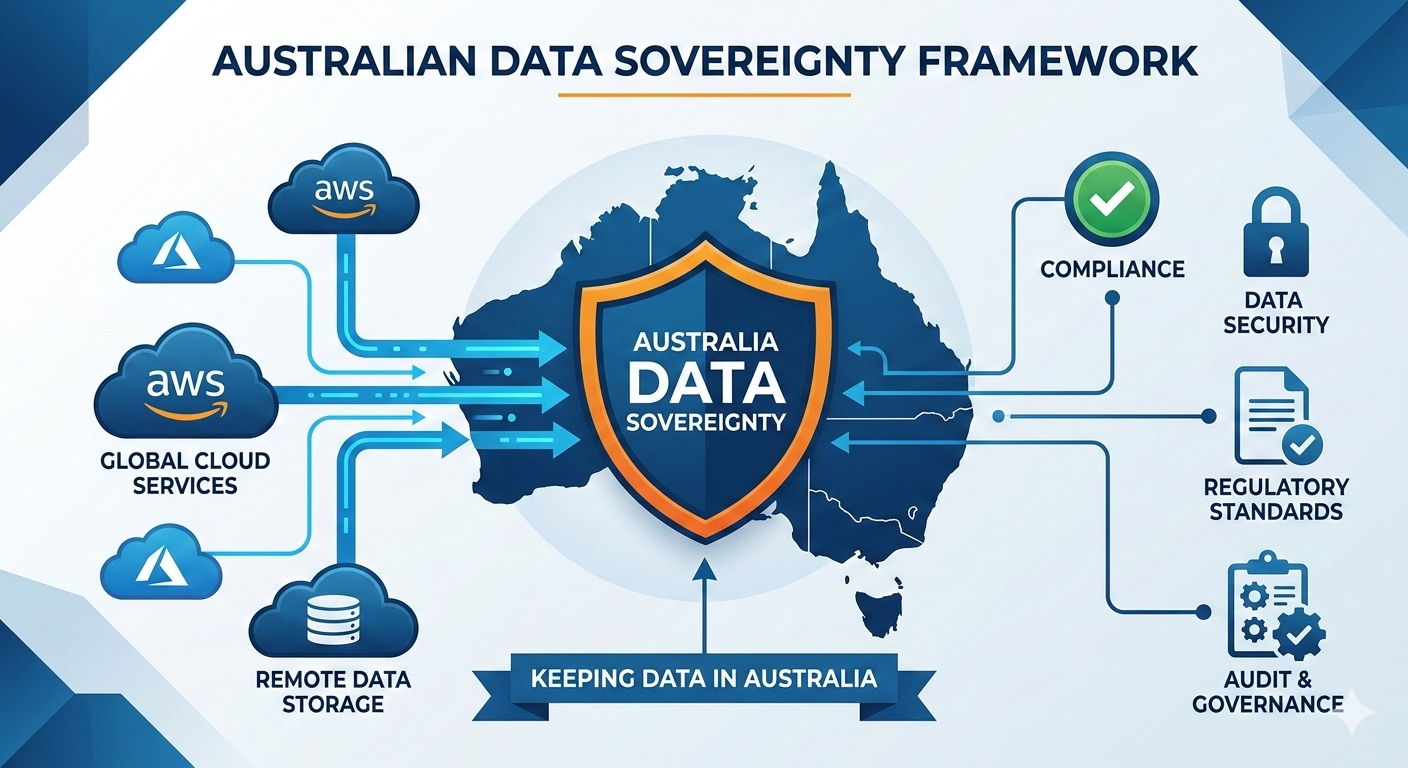
- Data in Australia for sovereignty
- International users (if you have them) get poor performance
- CDN required for acceptable experience
How to avoid this mistake:
Before Migration:
1. Test From Actual User Locations
- Not from datacenter
- Not from your desk in head office
- From branch offices, remote workers, wherever users actually are
2. Measure Current Performance Baseline
- Application page load times
- Database query response times
- File access speeds
- Peak usage periods
3. Model Cloud Performance
- Test latency from each location to cloud regions
- Calculate expected performance degradation
- Identify if acceptable or needs optimization
4. Design for Latency
- Reduce database round trips
- Implement caching where appropriate
- Use CDN for static content
- Consider edge computing for remote locations
Network Design Options:
Option 1: Public Internet Only
- Pros: Cheapest, easiest
- Cons: Variable performance, security concerns, latency
- Good for: Non-critical apps, small teams, low data volumes
- Cost: Included in cloud costs
Option 2: Site-to-Site VPN
- Pros: Secure, affordable
- Cons: Throughput limited, latency overhead
- Good for: SME with 1-3 offices, moderate data transfer
- Cost: $50-200/month
Option 3: Direct Connect / ExpressRoute
- Pros: Fast, reliable, predictable performance
- Cons: Expensive, takes time to provision
- Good for: Enterprise, high data volumes, latency-sensitive apps
- Cost: $800-3,000/month depending on bandwidth
Option 4: Hybrid Approach
- VPN for general access
- Direct Connect for critical applications
- CDN for public-facing content
- Cost: $1,500-5,000/month typically
Brisbane logistics company solution:
After performance issues:
- Implemented application caching (40% reduction in database calls)
- Set up Azure ExpressRoute (improved latency from 25ms to 8ms)
- Moved static reports to CDN
- Result: Better performance than on-premise
- Total additional cost: $1,800/month + $8,500 one-time
Should have been in original design. Would have saved 8 weeks of user complaints.
Mistake #4: Underestimating Security and Compliance Requirements
What it looks like:
Melbourne healthcare provider migrated patient management system to AWS.
Three months later: Compliance audit.
Findings:
- Data stored in US region (patient data must stay in Australia)
- Audit logging not configured
- Backup encryption not enabled
- Multi-factor authentication not enforced
Compliance failure. Had to:
- Migrate again to Australia region
- Implement proper logging
- Enable encryption everywhere
- Set up MFA for all users
- External security audit
Cost: $24,000 to fix what should have been done correctly initially.
Common security mistakes:
1. Wrong Region Selection
Data sovereignty requirements for Australian businesses:
- Health data → Australian Privacy Principles
- Financial services → APRA requirements
- Government contractors → IRAP compliance
All require data stay in Australia.
Yet I’ve seen:
- Patient data in AWS US-East
- Financial records in Azure West Europe
- Government system data in Singapore region
Why? Cheaper, more services available, faster provisioning.
The fix later: Expensive, time-consuming, compliance risk.
2. Default Security Settings
Cloud providers optimize for ease of use, not security.
Defaults that bite you:
- Storage buckets publicly accessible (hello data breaches)
- Weak password policies (no MFA requirement)
- Broad network access rules (open to internet)
- Minimal logging (can’t prove compliance)
- Encryption optional (not enabled by default)
Brisbane logistics company example:
- Deployed AWS application with default security
- External audit found:
- 3 S3 buckets publicly accessible
- No MFA on admin accounts
- Database accepting connections from any IP
- No encryption at rest
- Minimal audit logging
None malicious. Just didn’t change defaults. Cost to fix + audit: $18,500.
3. Inadequate Access Controls
On-premise mindset: “Everyone’s on our network, so it’s secure”
Cloud reality: “Internet-accessible, need proper controls”
Common issues:
- Shared admin passwords
- No role-based access control
- Former employees still have access
- Third-party contractor access not reviewed
- No multi-factor authentication
Melbourne professional services firm:
- Migration completed
- 6 months later discovered ex-employee still had admin access
- They’d left 4 months before migration
- Access never revoked in cloud environment
- Potential data exposure: unknown
4. Backup and Disaster Recovery Assumptions
“It’s in the cloud, they back it up, right?”
No. Cloud providers guarantee infrastructure availability. They don’t guarantee YOUR data protection.
You’re responsible for:
- Database backups
- Application data backups
- Configuration backups
- Testing restore procedures
- Disaster recovery planning
Sydney accounting firm learned this hard way:
- Assumed AWS “backs up everything”
- Database corruption (application bug, not AWS issue)
- No recent backup configured
- Lost 3 weeks of client transactions
- Had to reconstruct from emails and paper records
How to avoid this mistake:
Before Migration - Compliance Assessment:
1. Identify Requirements
- Industry regulations (healthcare, financial services, government)
- Data residency requirements
- Audit and logging requirements
- Encryption requirements
- Access control requirements
2. Document Controls
- What security controls exist today
- What cloud provider offers natively
- What gaps need addressing
- What additional tools/services needed
3. Design Security Architecture
- Network segmentation
- Identity and access management
- Encryption (at rest and in transit)
- Logging and monitoring
- Backup and disaster recovery
Security Checklist for Australian Businesses:
Data Sovereignty ✓
- All data in Australian regions (Sydney and/or Melbourne)
- Verify backup locations (including snapshots, replicas)
- Document data flows (especially international transfers)
- Configure geo-restrictions where required
Encryption ✓
- Encryption at rest for all storage
- Encryption in transit (TLS 1.2 minimum)
- Key management strategy
- Database encryption enabled
Access Control ✓
- Multi-factor authentication enforced
- Role-based access control configured
- Privileged access management
- Regular access reviews (quarterly minimum)
- Former employee access revoked
Monitoring & Logging ✓
- Centralized logging configured
- Audit trails for all admin actions
- Security monitoring and alerting
- Log retention meets compliance requirements
Backup & DR ✓
- Automated backup configured
- Backup testing schedule (quarterly minimum)
- Disaster recovery plan documented
- RTO and RPO defined and tested
Network Security ✓
- Network segmentation implemented
- Firewall rules configured (least privilege)
- VPN or private connectivity
- DDoS protection enabled
Cost Reality:
Basic security implementation: $8,000-$15,000 one-time
Advanced security (compliance-heavy): $20,000-$40,000 one-time
Ongoing security management: $500-$2,000/month
External audit: $8,000-$25,000 annually
Cost of non-compliance:
- Healthcare data breach: $2.9M average cost (Ponemon Institute 2023)
- GDPR/Privacy Act violations: Up to 4% global revenue
- Reputation damage: Immeasurable
Mistake #5: Poor Change Management and User Adoption
What it looks like:
Brisbane manufacturing company. Perfect technical migration. Zero downtime. All systems working.
Week 1: 15% of users using new system Week 2: 20% Week 3: Still 35%
Rest still trying to use old system (which was turned off). Productivity crashed.
The problem:
Technical success ≠ business success
Users need to:
- Understand why change is happening
- Know how to use new systems
- Have support when things go wrong
- Feel involved in the process
What went wrong in Brisbane:
Management announced migration 2 weeks before.
No training. No documentation. Assumed “they’ll figure it out.”
They didn’t figure it out.
Instead:
- Called IT constantly
- Made errors in new system
- Blamed migration for everything
- Some found workarounds (emailing spreadsheets instead of using system)
Took 8 weeks to stabilize. Productivity drop: estimated 15-20% during transition.
Change management mistakes:
1. Treating It as IT Project (Not Business Project)
Technical teams focus on: servers, databases, uptime
Users care about: “Can I do my job?”
Melbourne law firm migration:
- IT declared success (all systems migrated)
- Lawyers couldn’t find documents (new folder structure)
- Billing team couldn’t generate invoices (report paths changed)
- Client communications delayed
IT: “Everything’s working” Business: “We can’t work”
Both correct. Different definitions of “working.”
2. Insufficient Training
“It’s the same system, just in the cloud” - famously wrong
What changes for users:
- Login process (now web-based instead of domain login)
- VPN required for some access
- File paths different (mapped drives → OneDrive/SharePoint)
- Printers need reconfiguring
- Saved shortcuts don’t work
- Application performance might feel different
Adelaide professional services firm did this right:
- 2-hour training session for all users (during work time)
- Quick reference guides on desk
- Champions in each department (super users who got extra training)
- IT support extended hours first 2 weeks
- Daily check-ins first week
Result: Smooth transition, high adoption, minimal complaints.
3. No Support Plan for Post-Migration
“Go live” isn’t the end. It’s the beginning of user challenges.
First week post-migration typical issues:
- “How do I access X?”
- “Where did my files go?”
- “This is slower than before”
- “I can’t print”
- “My shortcuts don’t work”
If you don’t have support plan, these small issues compound.
Sydney company post-migration:
- IT team back to “normal” work immediately
- Users struggling
- Tickets piling up
- Issues not resolved quickly
- Frustration building
- Perception: “Migration failed”
Technical reality: Everything working fine User reality: Can’t get help when needed
4. All-or-Nothing Approach
Biggest risk: Migrate everything at once.
Melbourne accounting firm:
- Migrated all systems same weekend
- Practice management + email + file servers + line-of-business apps
- Monday morning: chaos
- Everything unfamiliar at once
- Users overwhelmed
- Support team overwhelmed
- Took 6 weeks to stabilize
Better approach (Brisbane logistics):
- Week 1: File servers only
- Week 3: Email (users comfortable with file access now)
- Week 6: Line-of-business applications
- Week 10: Remaining systems
Each phase:
- Users learn one change at a time
- IT focuses support on one area
- Issues identified and fixed before next phase
- Confidence builds
How to avoid this mistake:
Change Management Plan:
Phase 1: Communication (4-6 weeks before migration)
Who, what, why, when:
- What’s changing
- Why we’re doing this
- Benefits (faster, more reliable, cost savings, whatever’s true)
- Timeline
- What users need to do
- Where to get help
Ongoing communication:
- Weekly updates
- Progress reports
- Address concerns
- Celebrate milestones
Phase 2: Training (2-3 weeks before migration)
Training program:
- Role-based training (different roles need different focus)
- Hands-on practice (not just slides)
- Quick reference guides (one-page cheat sheets)
- Video tutorials (for self-service learning)
- Super user program (champions in each department)
Melbourne healthcare provider:
- Created 5 role-specific training modules
- 15-minute videos for each
- One-page reference guides
- Hands-on lab environment for practice
- Result: 85% confidence in new system before launch
Phase 3: Phased Rollout (Minimize risk)
Approach:
- Pilot group (IT team + volunteers)
- Department by department
- Critical systems last (when confident in process)
Each phase:
- Test before rolling to more users
- Gather feedback
- Adjust approach
- Fix issues
- Document lessons learned
Phase 4: Support (First 4 weeks post-migration)
Support strategy:
- Extended IT hours (first 2 weeks especially)
- Dedicated migration support channel
- Daily stand-ups to address issues
- Quick response to problems
- Regular user feedback sessions
Brisbane professional services:
- IT support 7am-7pm first week (normally 9-5)
- Dedicated Teams channel for migration questions
- 30-minute daily team huddles
- Issues resolved within 2 hours average
- User satisfaction: 92% (post-migration survey)
Investment:
- Change management: $6,000-$15,000 depending on user count
- Training development: $4,000-$12,000
- Extended support: $3,000-$8,000
ROI: Faster adoption, fewer support calls, higher productivity, better user sentiment
Melbourne firm comparison:
- First migration (poor change management): 8 weeks to stabilize
- Second migration same company (proper change management): 2 weeks to stabilize
Pulling It All Together: What Good Migration Looks Like
Melbourne professional services firm, 75 staff. Did it right:
Phase 1: Discovery (3 weeks)
- Documented all systems
- Interviewed users
- Identified dependencies
- Found systems IT didn’t know about
- Created accurate inventory
Phase 2: Planning (2 weeks)
- Designed cloud architecture
- Planned network connectivity
- Addressed security requirements
- Created migration schedule
- Budgeted accurately
Phase 3: Testing (2 weeks)
- Migrated pilot systems
- Tested performance from all locations
- Validated security controls
- Refined approach based on learnings
Phase 4: User Preparation (3 weeks)
- Communicated changes
- Conducted training
- Created reference materials
- Built confidence
Phase 5: Migration (6 weeks, phased)
- Week 1-2: Non-critical systems
- Week 3-4: File servers and email
- Week 5-6: Business applications
Phase 6: Stabilization (4 weeks)
- Extended support
- Issue resolution
- Optimization
- User feedback
Total timeline: 20 weeks
Budget: $95,000
Result:
- Zero critical issues
- 92% user satisfaction
- 5% under budget
- 1 week ahead of schedule
- Monthly cloud costs within 3% of estimate
The difference:
- Proper discovery
- Realistic planning
- Phased approach
- Strong change management
- Adequate support
Summary: How to Avoid These Mistakes
Mistake #1: Incomplete Discovery
- Invest 3-4 weeks in discovery
- Interview users, not just IT
- Document everything actually running
- Test assumptions
- Budget: $4,500-$8,000
Mistake #2: Underestimating Data Migration
- Measure actual data volumes
- Test migration approach first
- Clean data before migrating
- Plan for bandwidth limitations
- Validate after migration
Mistake #3: Ignoring Network Performance
- Test from actual user locations
- Measure latency impact
- Design for latency (caching, optimization)
- Consider Direct Connect/ExpressRoute for critical apps
- Budget: $800-3,000/month for dedicated connectivity
Mistake #4: Inadequate Security
- Use Australian regions for data sovereignty
- Don’t accept default security settings
- Implement proper access controls
- Configure encryption and logging
- Test backup and recovery
- Budget: $8,000-$15,000 for basic security
Mistake #5: Poor Change Management
- Communicate early and often
- Train users properly
- Phased rollout (not all at once)
- Extended support post-migration
- Budget: $13,000-$35,000 for change management
Total additional investment to do it right: $26,300-$61,000
Cost of doing it wrong: 30-80% budget overrun, 2-3x timeline extension, poor user adoption, potential compliance issues
The successful migrations I’ve seen invest in discovery, planning, and change management upfront. The failed ones try to save money there and pay 3x later fixing problems.
Want help planning your migration? I offer free 45-minute assessment calls to review your environment and identify potential risks before you start.