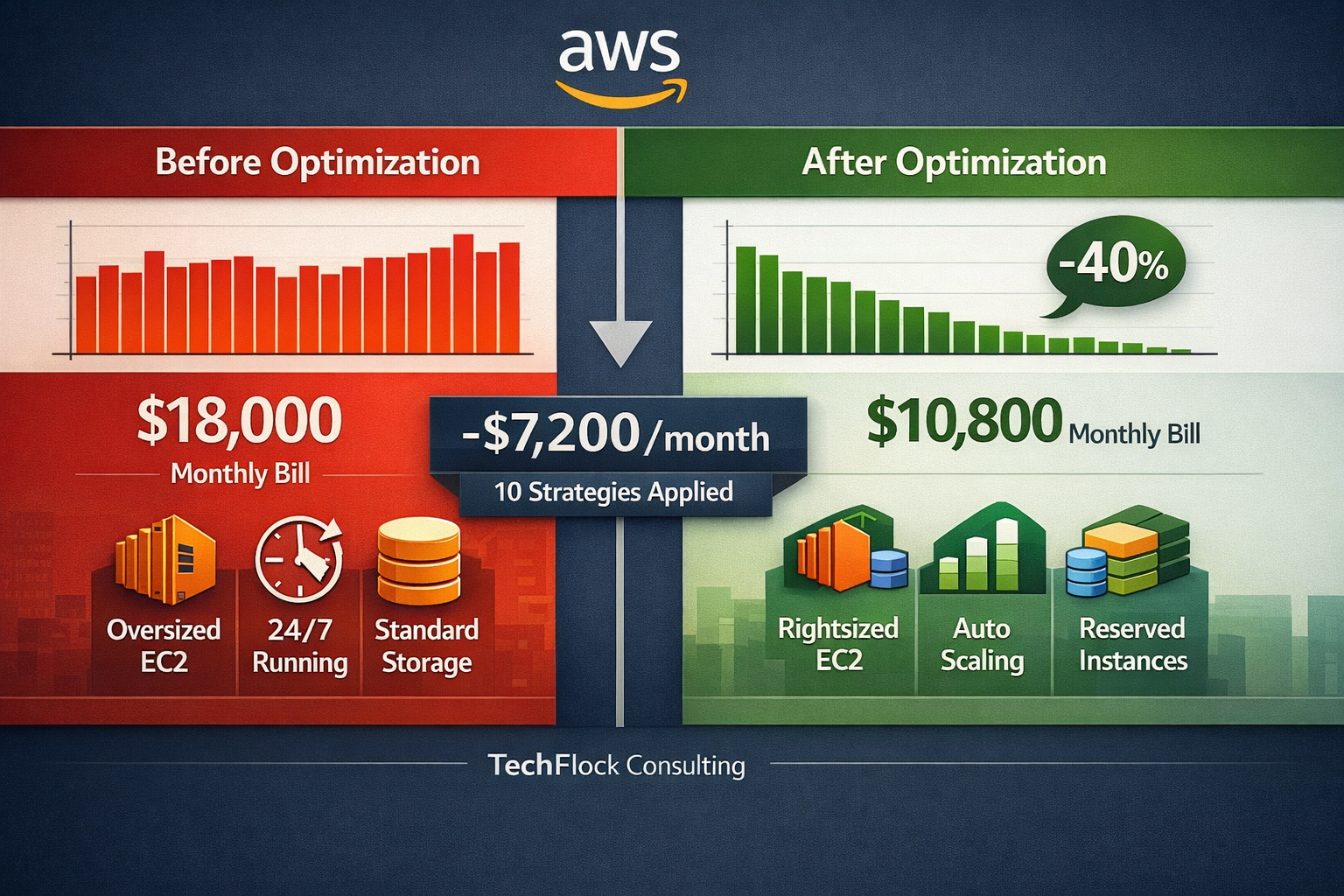
$18,000 per month. Melbourne logistics company looked at their AWS bill and knew something was wrong. They just didn’t know where to start cutting costs.
Two weeks later: $10,800. Down 40% without touching performance or reliability. Some systems actually ran faster.
This isn’t unusual. Most businesses overspend on AWS by 40-60% in their first year. The good news? Cost optimization is straightforward once you know where to look.
After optimizing AWS for maybe 120 Australian businesses over the past decade, I’ve identified the patterns that consistently deliver savings. These aren’t theoretical tips - they’re practical strategies I’ve implemented repeatedly with documented results.
Here are the 10 most effective ways to cut your AWS bill, ranked by effort versus impact.
Strategy 1: Right-Size Your EC2 Instances (Biggest Quick Win)
Effort: Low (2-3 days)
Typical Savings: 25-40% on compute costs
Best For: Everyone
Single biggest waste I see? Oversized EC2 instances. During migration, businesses typically match their on-premise server specs or add a “safety buffer.” Result? You’re paying for capacity you don’t use.
How to spot it: Use Cost Explorer or CloudWatch to analyze CPU and memory utilization over 30 days. If instances consistently run below 40% CPU and 60% memory, you’re almost certainly oversized.
Brisbane manufacturing - 23 t3.xlarge instances (4 vCPU, 16GB RAM each) averaging 15% CPU utilization. We downsized to t3.large (2 vCPU, 8GB RAM) for non-production and kept t3.xlarge with Auto Scaling for production. Monthly cost: $7,800 → $4,200. That’s $3,600 monthly savings for three days of work.
Implementation approach:
Start with non-production where mistakes are less costly. Analyze one week of CloudWatch metrics focusing on peak usage times. Create test instance at smaller size and verify application performance under load. If metrics show consistent low usage (below 40%), downsize during next maintenance window.
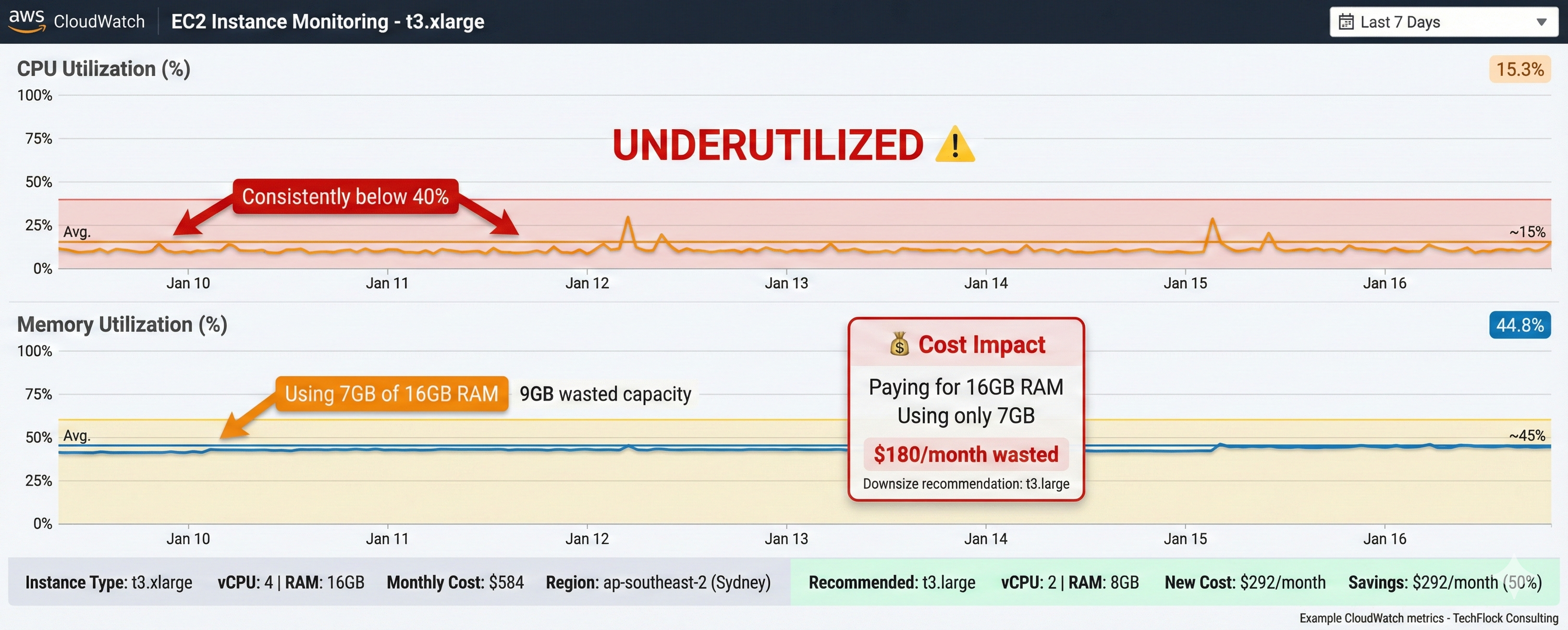
Key insight: AWS pricing is hourly. Even if you occasionally spike to 80% CPU, it’s often cheaper to run smaller instances and scale out during peaks than run large instances 24/7.
Mistakes to avoid:
Don’t blindly downsize everything - some applications legitimately need burst capacity. Don’t touch database servers without careful testing (undersized databases cripple performance). Always test in non-production first, especially for unpredictable workloads.
Strategy 2: Reserved Instances and Savings Plans (Best ROI)
Effort: Medium (1-2 weeks analysis)
Typical Savings: 40-75% on committed workloads
Best For: Stable, predictable workloads
Reserved Instances (RIs) and Savings Plans are AWS’s commitment-based pricing. You commit to using certain compute for 1 or 3 years, AWS gives you substantial discounts.
The math is compelling. t3.medium on-demand costs $0.0416/hour in Sydney ($30.34/month). Same instance with 1-year RI costs $0.0265/hour ($19.33/month) - 36% savings. With 3-year RI: $0.0169/hour ($12.33/month) - 59% savings.
Which to choose: RIs or Savings Plans?
Reserved Instances lock you to specific instance families in specific regions. Savings Plans are more flexible - commit to dollar amount per hour, it automatically applies across instance types and regions. For most businesses, Savings Plans offer better flexibility without sacrificing much discount.
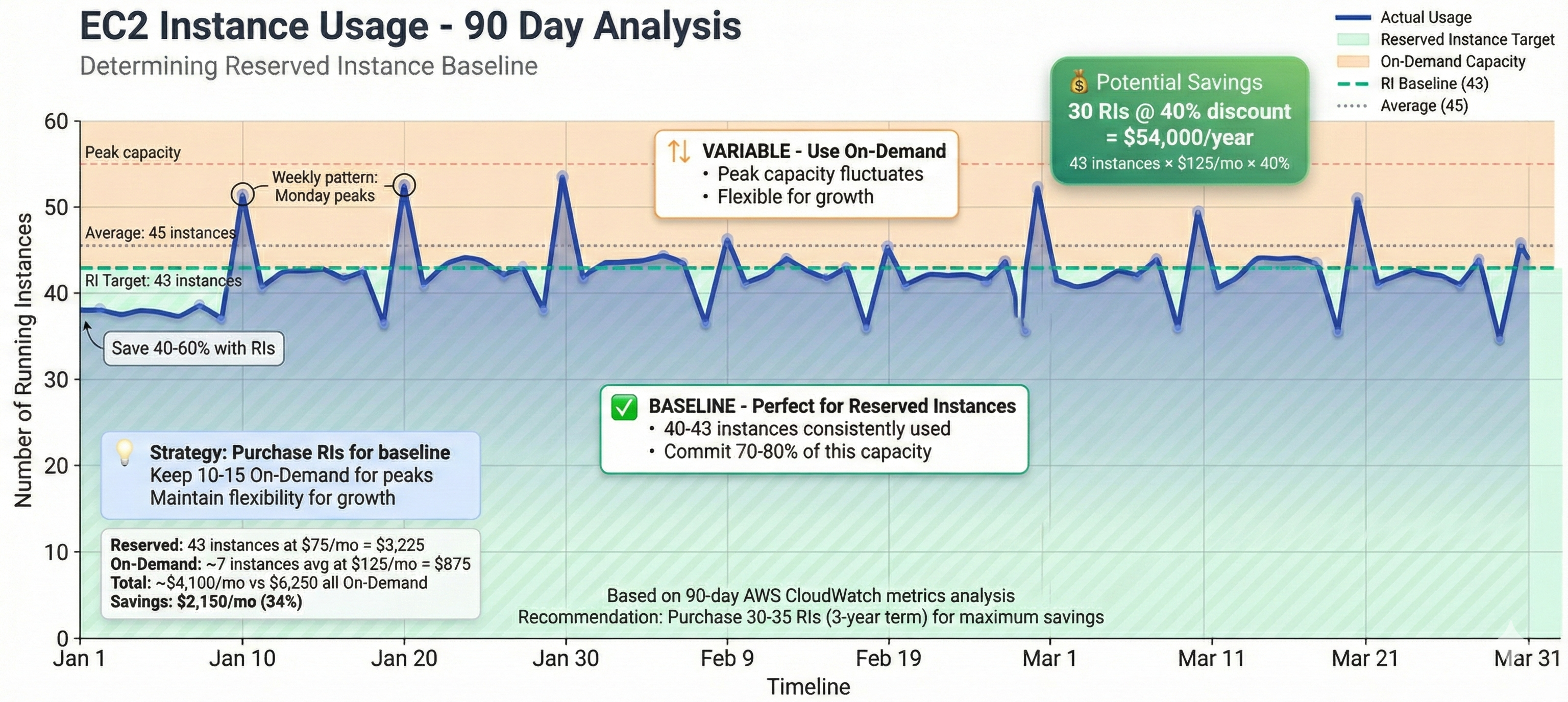
Sydney professional services firm analyzed usage, found they consistently ran 40 instances for production. They purchased 1-year Savings Plan covering baseline usage - saved $54,000 annually. When they needed to change instance types six months later during optimization, the Savings Plan still applied. Reserved Instances would’ve required exchange process.
How to analyze commitments:
Look at EC2 usage over past 3-6 months through Cost Explorer. Identify baseline - minimum instances you consistently run 24/7. This is your Savings Plan target. Don’t commit to peak capacity, only baseline. Purchase Savings Plans or RIs to cover 70-80% of baseline, not 100%, to maintain flexibility.
The commitment fear:
Many worry about getting locked into wrong commitment. Reality: if you’ve been running stable workloads for 6+ months, they’re unlikely to change drastically. Even if they do, AWS has Reserved Instance Marketplace where you can sell unused RIs. I’ve sold RIs three times when clients changed architecture - you won’t get full value back, but you’ll recover 60-80%.
For initial migrations, wait 3-4 months to understand usage patterns before committing. But once stable, delaying costs you hundreds or thousands in unnecessary on-demand pricing monthly.
Strategy 3: Leverage Spot Instances for Fault-Tolerant Workloads
Effort: Medium-High (requires architecture changes)
Typical Savings: 70-90% on applicable workloads
Best For: Batch processing, data analytics, CI/CD, rendering
Spot Instances are spare AWS capacity sold at steep discounts - typically 70-90% off on-demand pricing. Catch? AWS can reclaim them with 2 minutes notice when they need capacity back. Makes them unsuitable for real-time production but perfect for workloads that can tolerate interruption.
I’ve implemented Spot for data processing pipelines, automated test environments, rendering farms, and ETL jobs. Savings are dramatic when applied correctly.
$204 per night down to $30. Melbourne media company runs nightly video rendering - previously used 50 on-demand c5.4xlarge instances for 6 hours ($0.68/hour each). Moved to Spot Instances averaging $0.10/hour. That’s 85% reduction, saving $5,220 monthly.
What works well on Spot:
Batch processing jobs that checkpoint progress (interrupted jobs resume where they left off rather than starting over). Data pipeline ETL jobs that process in small chunks. CI/CD build environments where failed build simply retries. Development and testing environments not time-critical. Machine learning training jobs that save checkpoints regularly.
What doesn’t work:
Don’t use Spot for databases unless you really know what you’re doing - high risk of data loss or corruption. Real-time production web servers aren’t suitable (interruptions cause user-facing downtime). Any stateful service without proper checkpointing will lose work when interrupted. Systems requiring guaranteed completion times shouldn’t rely on Spot.
Implementation approach:
Start with non-critical batch jobs where interruption is merely inconvenient. Implement proper state management so jobs can resume after interruption. Use Spot Fleet or Auto Scaling Groups with mixed instance types to improve availability. Monitor Spot interruption rates for your chosen instance types - some have much lower rates than others.
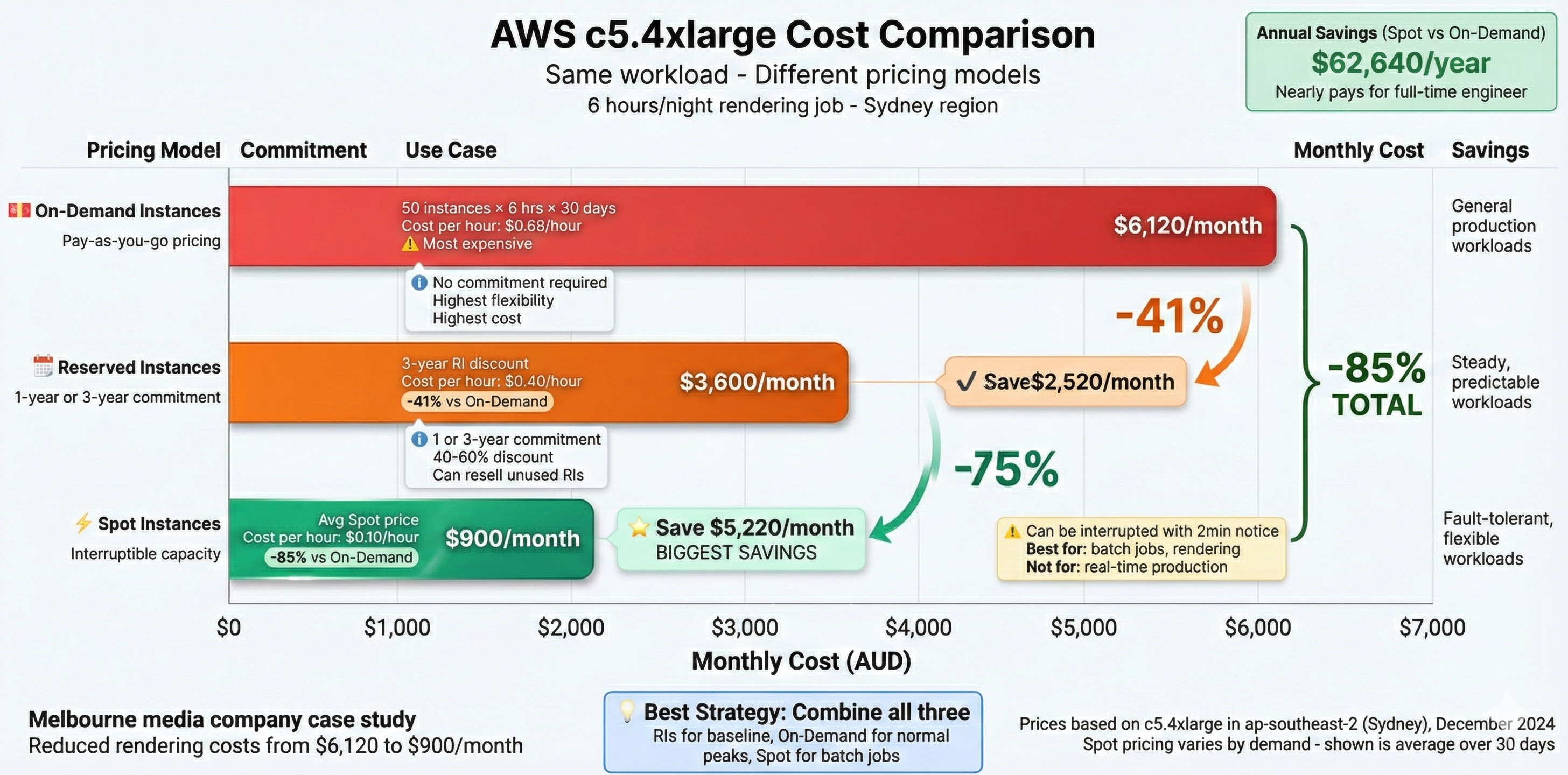
Key to successful Spot usage is architecture. Your application must handle interruptions gracefully. For the media company, we modified rendering pipeline to save completed frames to S3 every minute. When Spot Instance was interrupted, job simply resumed from last saved frame on new instance.
Strategy 4: Implement Auto Scaling (Stop Paying for Idle Resources)
Effort: Medium (1-2 weeks)
Typical Savings: 40-60% for variable workloads
Best For: Applications with predictable daily/weekly patterns
If applications experience variable load throughout day or week, running fixed capacity 24/7 wastes money. Auto Scaling automatically adjusts compute capacity based on actual demand.
Think about typical business application. Peak usage: 9am-5pm weekdays. Outside business hours, usage drops to nearly zero, yet most companies run same infrastructure 24/7. Auto Scaling reduces that to just what you need, when you need it.
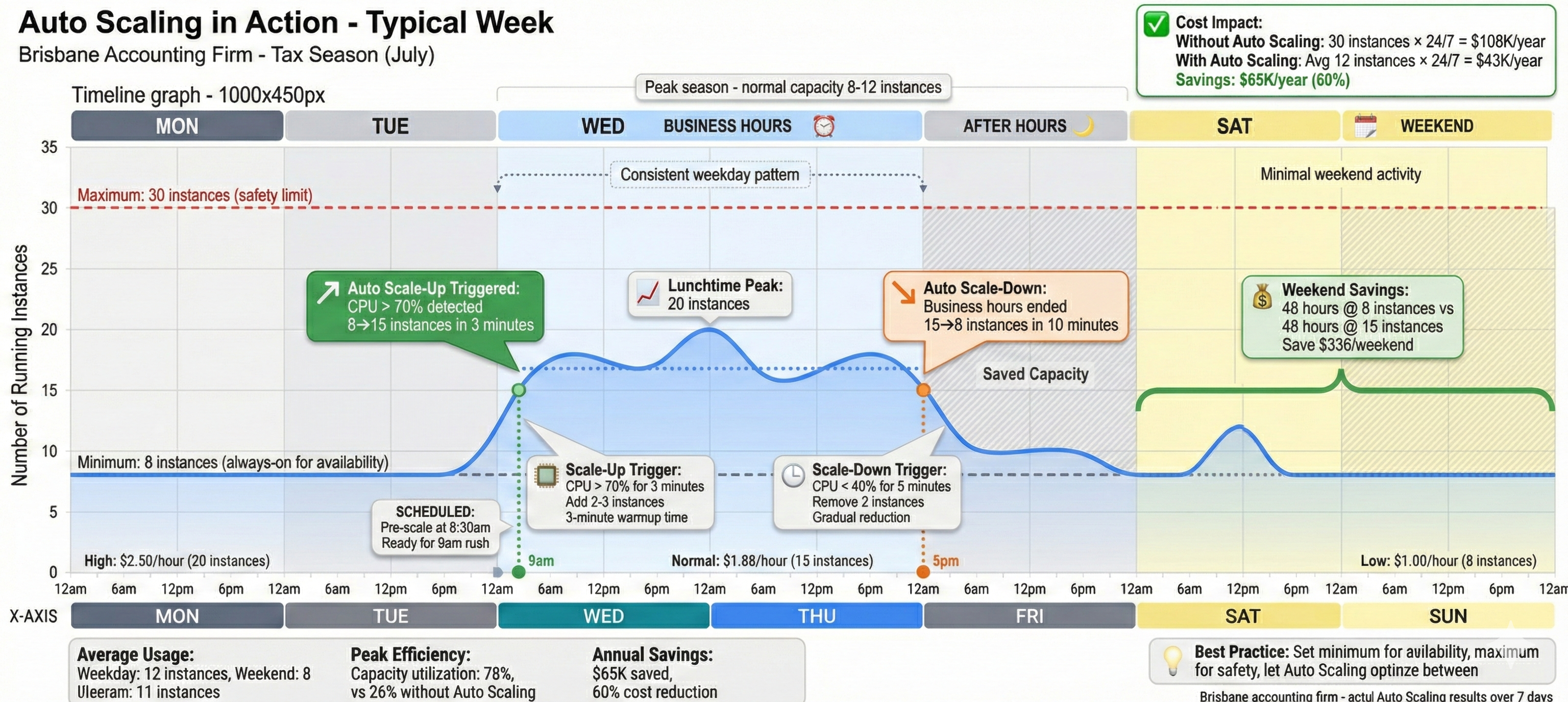
Brisbane accounting firm runs financial software for clients. During tax season (July-October), they need 30 instances to handle load. Rest of the year, 8 instances suffice. Before Auto Scaling, they ran 30 instances year-round ($108,000/year). With Auto Scaling and scheduled scaling policies, average dropped to 12 instances ($43,200/year). Saved $64,800 annually.
How Auto Scaling saves money:
Target tracking policies scale based on CPU, memory, or custom metrics. If application averages 70% CPU during business hours but drops to 15% overnight, Auto Scaling can reduce instance count from 10 to 3 after hours - cutting costs 70% for 60% of time (non-business hours).
Scheduled scaling works for predictable patterns. If you know usage spikes Monday mornings and drops Friday afternoons, schedule scale-up and scale-down actions accordingly. Simpler than target tracking, perfect for businesses with regular patterns.
Implementation for first Auto Scaling group:
Start with non-production environments to learn behavior. Create launch template defining instance configuration. Configure Auto Scaling group with minimum 2 instances (for availability) and maximum equal to current manual count. Set target tracking to maintain 70% CPU utilization. Monitor for one week and adjust thresholds based on actual behavior.
Common objection: “But scaling up takes time - what about sudden spikes?” That’s valid. Set minimum capacity to handle typical load and let Auto Scaling handle peaks. If application needs 5 instances for normal operation and occasionally spikes to 12, set minimum to 5 and maximum to 15. Still saving money compared to running 12 instances 24/7.
Strategy 5: Optimize Storage Costs (The Silent Budget Killer)
Effort: Low-Medium (3-5 days)
Typical Savings: 40-80% on storage costs
Best For: Everyone, especially data-heavy workloads
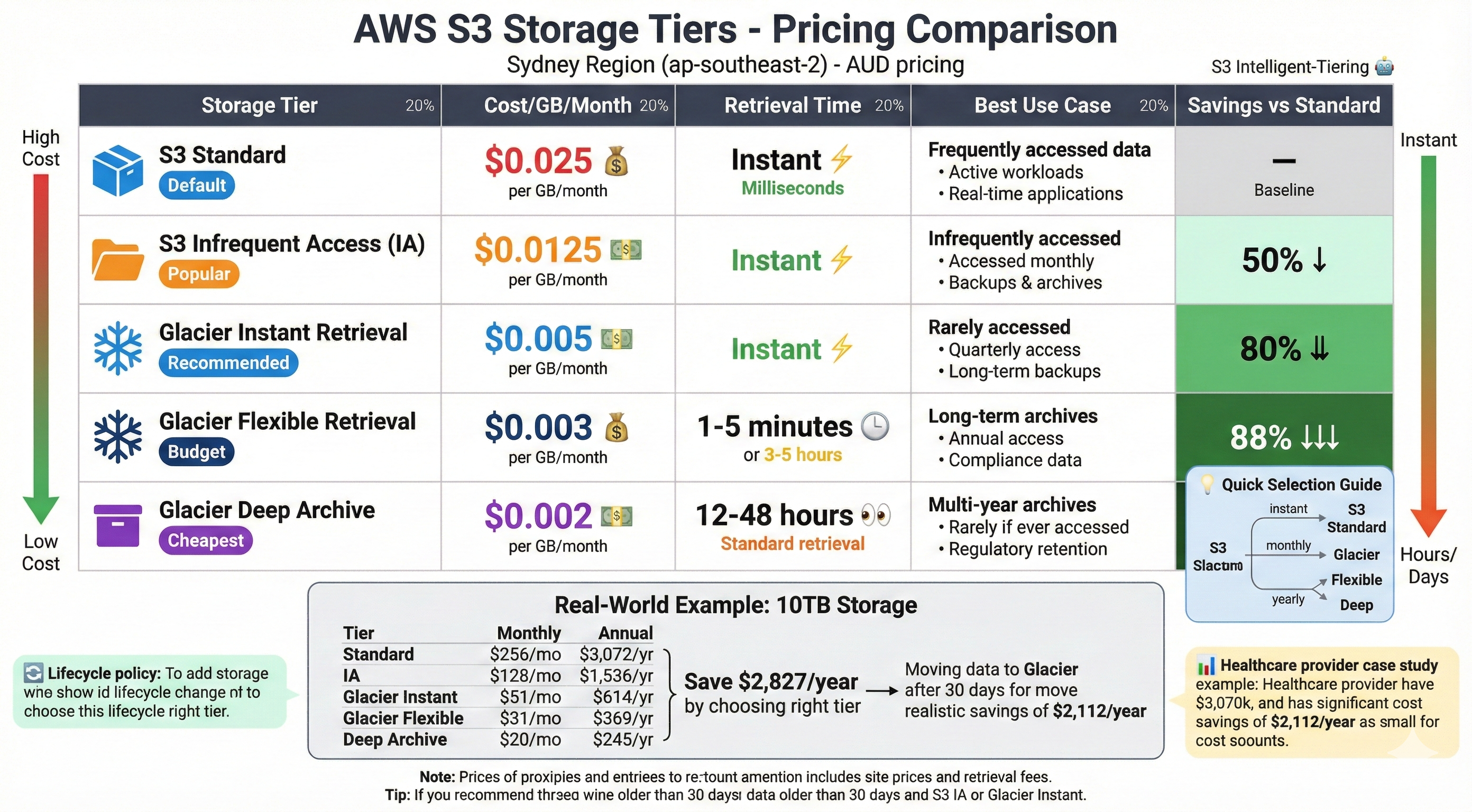
Storage costs creep up silently. Few hundred GB turns into several TB over time, suddenly you’re paying thousands monthly for data you rarely access. Solution is storage tiering and lifecycle policies.
AWS offers multiple storage tiers with very different pricing. S3 Standard costs $0.025/GB/month in Sydney. S3 Infrequent Access (IA) costs $0.0125/GB/month (50% cheaper). S3 Glacier Instant Retrieval costs $0.005/GB/month (80% cheaper). S3 Glacier Deep Archive costs $0.002/GB/month (92% cheaper).
Differences add up quickly. Company storing 10TB in S3 Standard pays $256/month. Move infrequently accessed data to appropriate tiers and same 10TB might cost $80/month - $176 monthly savings or $2,112 annually.
Implementing intelligent tiering:
AWS offers S3 Intelligent-Tiering that automatically moves objects between access tiers based on usage patterns. Small monitoring fee ($0.0025 per 1,000 objects), but for most workloads cheaper than savings from automatic tiering.
Healthcare provider stored 15TB of patient imaging data in S3 Standard ($384/month). Analysis showed 90% of images never accessed after 30 days, another 8% accessed less than once monthly. We implemented lifecycle policies moving data to S3 IA after 30 days and Glacier after 90 days. New monthly cost: $112. Annual savings: $3,264.
Don’t forget EBS volumes:
Orphaned EBS volumes (from terminated instances) accumulate quickly. I regularly find companies paying for 20-30 unattached volumes nobody remembers creating. Run monthly audit and delete unused volumes. Also review snapshot retention - do you really need daily snapshots kept for 2 years? Reducing retention from 730 days to 90 days can cut snapshot costs 75%.
Database storage optimization:
RDS and other database services offer similar tiering. Enable RDS storage autoscaling so you’re not provisioning 2TB of storage when you only use 400GB. Review backup retention - 30 days is often excessive for non-regulated businesses. Consider Aurora Serverless for development databases not used 24/7.
Sydney fintech had 12 RDS databases for different environments (prod, staging, dev, test, various feature branches). Monthly cost: $4,800. We consolidated to 4 databases using schema-based separation for non-production, enabled storage autoscaling, and implemented Aurora Serverless for dev/test. New cost: $1,900. Monthly savings: $2,900.
Strategy 6: Optimize Data Transfer Costs (The Hidden Killer)
Effort: Medium (1-2 weeks)
Typical Savings: 50-80% on data transfer costs
Best For: Applications with significant internet traffic
Data egress (data leaving AWS to internet) is expensive and catches many by surprise. Inter-region and inter-AZ transfers also add up quickly for distributed architectures.
AWS charges nothing for data coming in, but $0.09-0.14 per GB leaving to internet. If application serves 1TB/month to users, that’s $90-140 just for bandwidth. Scale to 10TB and you’re paying $900-1,400 monthly before considering compute or storage.
CloudFront CDN optimization:
CloudFront is AWS’s CDN service. It caches content at edge locations worldwide, reducing origin server load and, crucially, reducing data transfer costs. CloudFront data transfer costs $0.085/GB to Australia (cheaper than direct S3) and first 1TB/month is free.
Melbourne e-commerce company served product images directly from S3. Monthly data transfer: 8TB = $720. We moved images behind CloudFront with 7-day TTL. Origin requests dropped 85% (most requests served from cache). New monthly transfer cost: $85. Setup time: 4 hours. Monthly savings: $635.
Architectural considerations for multi-region:
If you’re replicating data between regions for disaster recovery or geographic distribution, that inter-region transfer is expensive ($0.02/GB). Consider whether you need real-time replication or if near-real-time (5-10 minute delay) using batch transfers would work. Compression before transfer can reduce costs 60-80% for text-based data.
VPC endpoint optimization:
Services like S3 and DynamoDB offer VPC endpoints that keep traffic within AWS’s network rather than going over internet. Avoids egress charges and is more secure. If EC2 instances access S3 heavily, VPC endpoints can save hundreds monthly.
Strategy 7: Use Cost Anomaly Detection and Budgets
Effort: Low (2-3 hours setup)
Typical Savings: Prevent unexpected 2-5x cost spikes
Best For: Everyone
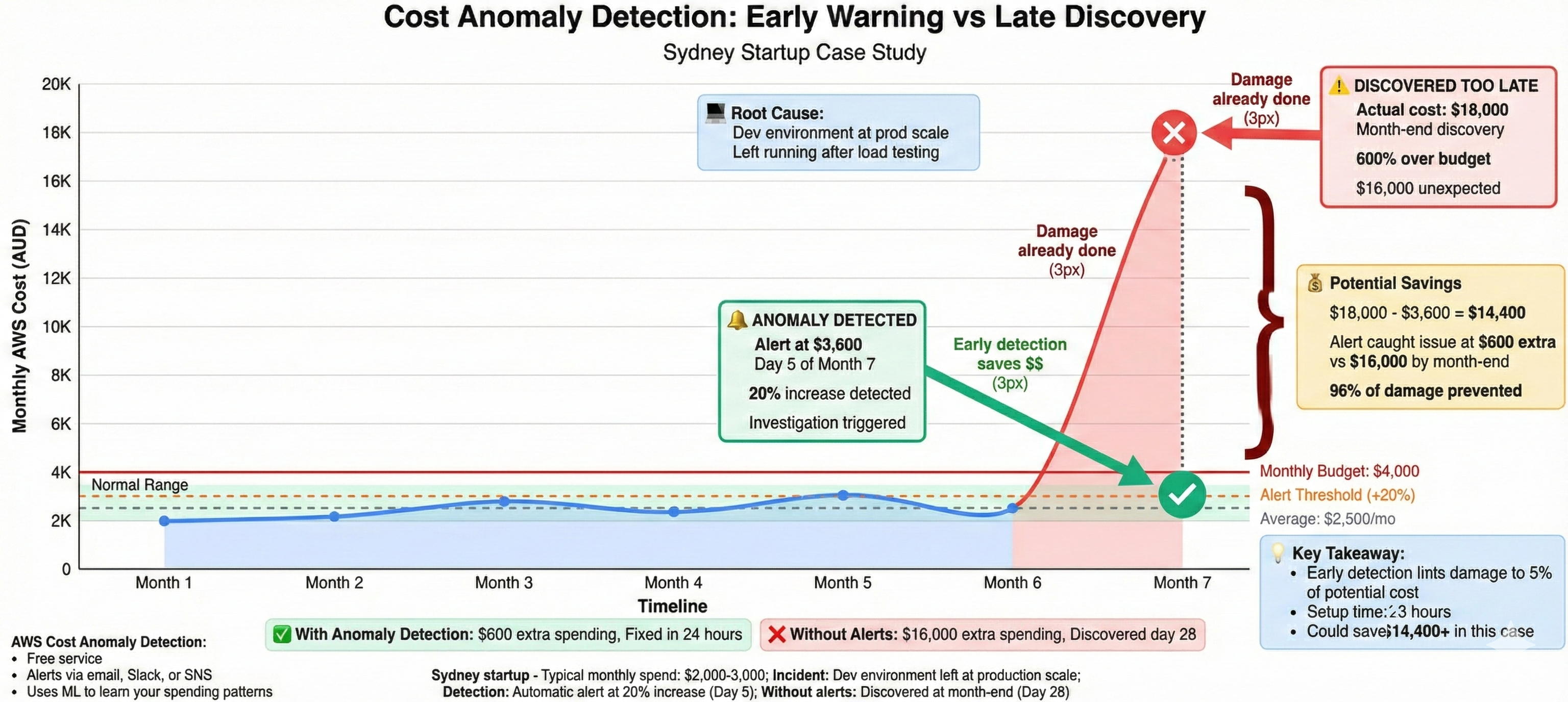
AWS Cost Anomaly Detection uses machine learning to identify unusual spending patterns and alert you before small issues become expensive problems. AWS Budgets lets you set spending thresholds with automatic alerts.
This isn’t about reducing existing costs - it’s about catching runaway costs before they explode your budget. I’ve seen businesses accidentally leave test resources running at scale, misconfigure auto-scaling leading to 10x overprovisioning, or have compromised credentials resulting in cryptocurrency mining on their account.
Sydney startup’s typical AWS bill: $2,000/month. Next month: $18,000. They discovered it on the 28th - after 90% of damage was done. They’d left development environment running at production scale after load testing. Cost Anomaly Detection would’ve alerted them within 24 hours, limiting damage to $600 instead of $16,000.
Setting up effective alerts:
Create monthly budget alert at 80% of expected spend - gives you time to investigate before month-end. Set up anomaly detection with email or Slack notifications going to someone who will actually respond (not shared inbox nobody monitors). Configure daily spending notifications for any account with production workloads.
Strategy 8: Review and Optimize Database Costs
Effort: Medium (1-2 weeks)
Typical Savings: 30-60% on database costs
Best For: Database-heavy workloads
Databases often represent 30-50% of total AWS costs but receive less optimization attention than compute. RDS, Aurora, and other managed database services offer multiple cost optimization opportunities.
Right-size database instances:
Like EC2, databases are frequently oversized. db.r5.2xlarge (8 vCPU, 64GB RAM) costs $1,168/month in Sydney. If database averages 30% CPU, db.r5.xlarge (4 vCPU, 32GB RAM) at $584/month might suffice - 50% savings. Monitor CloudWatch metrics for CPU, memory, IOPS, and connection count over 30 days before downsizing.
Aurora Serverless for variable workloads:
Aurora Serverless automatically scales database capacity based on load and pauses during idle periods. For development databases used business hours only, this can reduce costs 70-80% compared to always-on instances.
Melbourne SaaS company ran 8 development databases for engineering team (db.t3.medium, $122/month each = $976/month total). Most saw heavy usage 9am-6pm weekdays, sat idle otherwise. We moved to Aurora Serverless v2 with auto-pause. Average cost: $280/month. Monthly savings: $696.
Storage optimization and backups:
RDS charges for provisioned storage even if unused. If you provisioned 500GB but use only 150GB, you’re paying for 350GB of empty space. Enable storage autoscaling and set appropriate limits. Review backup retention - do you need 30 days of automated backups for development databases? Reducing to 7 days cuts backup costs significantly.
Consider self-managed on EC2 for specific scenarios:
For massive databases (multi-TB) with specialized requirements, running database software on EC2 with Reserved Instances or Savings Plans can be 40-60% cheaper than equivalent RDS. This trades AWS management convenience for cost savings and requires database administration expertise.
Strategy 9: Eliminate or Consolidate Redundant Resources
Effort: Low-Medium (1 week)
Typical Savings: 10-25% overall spend
Best For: Everyone, especially after rapid growth
AWS environments accumulate waste over time. Old test instances nobody remembers. Unused load balancers. Detached EBS volumes. Unused Elastic IPs. Old snapshots. Forgotten development environments. Each small waste item adds up to significant monthly costs.
Run quarterly audit identifying resources to eliminate. AWS provides tools like Trusted Advisor (included with Business support tier and above) that identifies unused or underutilized resources automatically.
Brisbane logistics company’s AWS audit revealed: 47 stopped EC2 instances (still paying for storage), 23 unattached EBS volumes ($460/month), 8 unused Elastic Load Balancers ($200/month), and 1,200 old RDS snapshots ($380/month). Total waste: $1,040/month discovered in 3-day audit. Annual savings: $12,480.
Create monthly cleanup process:
Tag all resources with Owner and Project information at creation. Implement policy requiring justification for resources older than 90 days. Run automated scripts quarterly to identify untagged resources or resources without recent activity. Delete or stop resources that haven’t been accessed in 60+ days (after confirming with owners).
Consolidate where possible:
Multiple small RDS instances can often consolidate into one larger instance with separate databases, reducing costs through economies of scale. Multiple ALBs serving low-traffic applications can consolidate into one ALB with path-based routing. Development and staging environments can share infrastructure with proper access controls.
Strategy 10: Leverage AWS Cost Optimization Tools
Effort: Low (ongoing monitoring)
Typical Savings: 15-30% through continuous optimization
Best For: Organizations spending $5K+/month
AWS provides Cost Explorer, Trusted Advisor, and Compute Optimizer to help identify savings opportunities. Third-party tools like CloudHealth, Cloudability, and Spot.io offer more advanced capabilities.
AWS Cost Explorer:
Free tool showing cost and usage over time. Use it to identify trends, anomalies, and optimization opportunities. Recommendations page suggests Reserved Instances and Savings Plans based on usage patterns.
AWS Trusted Advisor:
Identifies cost optimization opportunities like idle resources, unused reserved capacity, and over-provisioned instances. Available with Business or Enterprise support plans.
Third-party tools:
For organizations spending $10K+/month on AWS, specialized cost optimization platforms can pay for themselves. They provide more sophisticated analysis, automated recommendations, and integration with ITSM tools. Typical cost: $200-600/month for mid-market companies.
National retailer engaged managed cloud services provider with advanced cost optimization tools. Monthly AWS spend: $45,000. Tools identified $8,400 in monthly savings opportunities the internal team had missed (right-sizing, Reserved Instance recommendations, storage lifecycle policies). Tool cost: $600/month. Net monthly savings: $7,800.
Implementation Roadmap: Where to Start
With 10 strategies, question becomes: which to tackle first? Here’s my recommended priority based on effort versus impact:
Week 1 - Quick wins: Implement anomaly detection and budgets (2 hours). Audit and delete unused resources (3 days). Right-size obviously oversized instances in non-production (2 days).
Week 2-3 - Medium effort, high impact: Right-size production instances (carefully, with testing). Implement storage lifecycle policies. Review and optimize database sizing.
Month 2 - Commitment-based savings: Analyze usage patterns for Reserved Instances or Savings Plans. Purchase commitments for baseline capacity.
Month 3 - Architecture optimization: Implement Auto Scaling for variable workloads. Evaluate Spot Instances for batch workloads. Optimize data transfer with CloudFront.
Ongoing - Continuous optimization: Monthly reviews of costs and usage. Quarterly comprehensive audits. Regular right-sizing based on actual usage patterns.
Real-World Results: What to Expect
Three actual optimization projects show realistic expectations:
Small business: 40-person professional services firm migrated to AWS six months earlier. Monthly bill: $4,200. We implemented right-sizing, Reserved Instances, and storage tiering over three weeks. New monthly cost: $2,500. Savings: $1,700/month (40% reduction). Effort: 40 hours.
Mid-market: 150-employee logistics company. Monthly bill: $22,000. Over two months, we implemented all 10 strategies systematically. New monthly cost: $13,200. Savings: $8,800/month (40% reduction). Effort: 160 hours spread across their team and our consultants.
Enterprise: 400-employee financial services company. Monthly bill: $78,000. Three-month optimization project touching architecture, Reserved Instances, Spot fleet implementation, and workflow optimization. New monthly cost: $52,000. Savings: $26,000/month (33% reduction). Effort: 400 hours. Company hired managed services provider for ongoing optimization at $5,000/month, still netting $21,000 monthly savings.
Start Today, Not Tomorrow
Every month you delay costs you thousands in unnecessary AWS spending. Good news? Even basic optimization (strategies 1, 4, 5) can be completed in a week and typically saves 25-35%.
You don’t need to implement everything immediately. Start with quick wins, build momentum, then tackle bigger optimization opportunities. Most importantly, build cost optimization into regular operational rhythm - quarterly reviews should be standard practice.
Your Next Steps:
If you’re spending $5K+/month on AWS and haven’t done systematic optimization, you’re likely overspending by $2K-4K monthly. That’s $24K-48K annually you could redeploy to business growth instead of cloud infrastructure.
I offer free AWS cost audits where we’ll analyze your actual usage and identify your top 3-5 optimization opportunities with estimated savings. No pressure, just honest analysis based on 11 years and 100+ optimizations.